Behat
Vortex uses Behat for Behavior-Driven Development (BDD) testing. Behat lets you write human-readable stories that describe the behavior of the application. Behat tests primarily focus on critical user journeys, serving as end-to-end validations.
Vortex provides full Behat support, including a pre-configured
behat.yml with
profiles for Drupal projects and a
browser container
to run tests interactively in a real browser with a VNC viewer.
Usage
Since Behat requires a running Drupal instance, it can only be run within the container environment.
- Ahoy
- Docker Compose
# Run all Behat tests
ahoy test-bdd
# Run specific feature file
ahoy test-bdd tests/behat/features/homepage.feature
# Run scenarios with specific tag
ahoy test-bdd -- --tags=@smoke
# Run all Behat tests. The `-d memory_limit=-1` flag lifts the PHP memory
# limit for long runs, matching what `ahoy test-bdd` does.
docker compose exec cli php -d memory_limit=-1 vendor/bin/behat
# Run specific feature file
docker compose exec cli php -d memory_limit=-1 vendor/bin/behat tests/behat/features/homepage.feature
# Run scenarios with specific tag
docker compose exec cli php -d memory_limit=-1 vendor/bin/behat --tags=@smoke
Discovering available step definitions
- Ahoy
- Docker Compose
# Generate step definitions reference
ahoy test-bdd -- --definitions=l
# Generate step definitions reference
docker compose exec cli php -d memory_limit=-1 vendor/bin/behat --definitions=l
Writing tests
When writing tests, it is recommended to use the following structure:
@tag_describing_feature_group
Feature: Short feature description

  As a site owner
  I want to make sure that my feature does what it is supposed to do
  So that I can be sure that my site is working as expected

  @api
  Scenario: Anonymous user uses a feature
    Given I go to the homepage
    And I should be in the "<front>" path
    Then I save screenshot

  @api @javascript
  Scenario: Anonymous user uses a feature with AJAX
    Given I go to the homepage
    And I click ".button" element
    Then I save screenshot
Use the @api tag for tests that do not require JavaScript and @api @javascript
for tests that require JavaScript.
JavaScript tests are slow. Try using as few JavaScript tests as possible to keep the test run time low.
Skipping tests
Add the @skipped tag to a feature or scenario to exclude it from the test run.
Boilerplate features
Vortex provides BDD tests boilerplate
covering core user journeys (homepage,
login, search)
and the shipped module integrations (Redis, ClamAV, redirects, robots.txt,
XML sitemap, accessibility). The homepage and login features are tagged
@smoke.
These boilerplate tests run in the continuous integration pipeline when you install Vortex and can be used as a starting point for writing your own.
Project conventions
For project-specific test writing conventions (user story format, standard user
types, test data conventions), see your project's docs/testing.md file.
The docs/testing.md file is scaffolded when you install Vortex and should
be maintained by your project team to document agreed-upon testing practices.
Configuration
See the Behat user guide and its configuration reference.
All global configuration takes place in the behat.yml file.
By default, Behat will run all tests defined in the tests/behat/features
directory.
Adding or removing test targets:
default:
  suites:
    default:
      paths:
        - '%paths.base%/web/modules/custom/mymodule/tests/behat/features'
Chrome session flags
The behat.yml
configuration passes the following flags to Chrome via goog:chromeOptions
to ensure stable and deterministic test execution in the container environment:
| Flag | Purpose |
|---|---|
--disable-extensions | Prevents interference from browser extensions |
--disable-popup-blocking | Allows tests to open popups without being blocked |
--disable-translate | Prevents the translation bar from appearing on non-English pages |
--force-prefers-reduced-motion | Disables CSS animations and transitions for test stability |
--test-type | Suppresses error dialogs and crash recovery prompts |
--window-size=1920,1080 | Sets a deterministic viewport size for consistent screenshots |
Contexts and extensions
The configuration uses the following contexts and extensions:
- Drupal Extension: an integration layer between Behat, Mink Extension, and Drupal. It provides step definitions for common testing scenarios specific to Drupal sites.
- Behat Steps: a library of re-usable Behat steps for Drupal.
- Behat Screenshot: extension and step definitions to create HTML and image screenshots on demand or when tests fail.
- Behat Progress Fail Output Extension: output formatter, see Output format.
FeatureContext
The FeatureContext.php
file is a Behat custom context file that is loaded by default. This is where
custom step definitions and hooks should be placed.
It is recommended to use traits to organize step definitions and hooks and
include those traits in the FeatureContext.php file. There are already
several traits included from the Behat Steps
package.
Reports
Behat writes test run reports in JUnit format to the .logs/test_results/behat
directory.
Screenshots
Screenshots for failed tests or purposely made screenshots are stored in the
.logs/screenshots directory by default, which can be overwritten using the
BEHAT_SCREENSHOT_DIR variable (courtesy of the
Behat Screenshot package).
Animated screenshots
Per-step screenshots are combined into an animated GIF for each scenario, making
a failing test easier to follow. This is enabled in behat.yml under the
animation key of the DrevOps\BehatScreenshotExtension block.
Animation forces a full-page capture after every passed step, so its cost grows
with the number of steps and roughly doubles the wall time of a run. Set
animation.enabled to false in behat.yml to disable animation everywhere,
or tag an individual scenario or feature with @screenshots:animated:skip to
exempt it. See Artifacts for how the continuous integration
pipeline handles animation.
Output format
Out of the box, Vortex comes with the Behat Progress formatter output formatter to show progress as TAP and failures inline. This lets a test run continue after a failure while maintaining a minimal output.
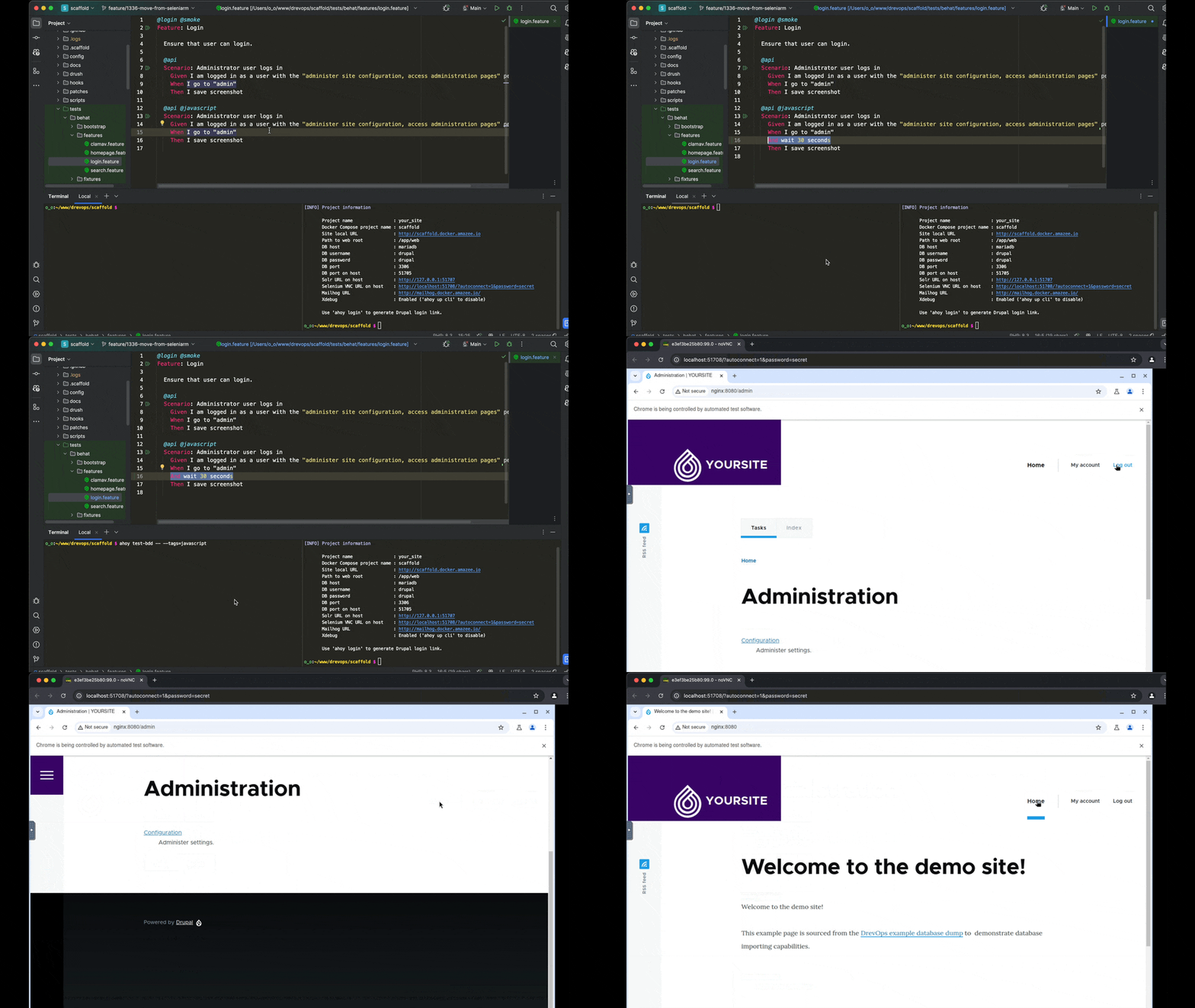
Observing the browser
For @javascript tests, Behat uses Selenium to connect to the browser. The
browser runs within a container and can be observed from the host machine by
using a browser thanks to the VNC server running in the container and noVNC.
- Ahoy
- Docker Compose
- Get the link for Selenium VNC URL on host:
ahoy info
- Click on the link next to
Selenium VNC URL on hostto open the browser.
- Get the port number:
docker compose port chrome 7900
- Replace
<port>with the value above and openhttp://localhost:<port>/?autoconnect=1&password=secretin your browser.
When running tests, you can add And I wait for 60 seconds step to suspend
the test execution for a minute and interact with the headless browser in a
container through a browser on your host machine.
Continuous integration
Profiles
Behat runs with the default profile defined in behat.yml: it runs every
scenario except those tagged @skipped.
When the number of runners is greater than 1, Behat tests run in parallel
across the runners to increase the speed of the test suite, and Behat tags mark
which runner a feature or scenario lands on. Behat picks the profile named after
the runner index, starting from 0. Out of the box, Vortex provides support
for unlimited parallel runners, but only 2 parallel profiles, p0 and p1:
p0(the first runner) is the catch-all: it runs every scenario not tagged@p1, plus all@smokescenarios.p1(the second runner) runs scenarios tagged@p1, plus all@smokescenarios.
In practice: leave a feature untagged to run it on the first runner, tag it
@p1 to move it to the second runner, or tag it @smoke to run it on every
runner. An untagged feature always lands on the first runner, so forgetting to
tag never orphans a test.
In the example below, with one runner Behat runs both scenarios; with 2 runners the first scenario runs on the first runner (untagged scenarios stay there) and the second scenario runs on the second runner:
@homepage
Feature: Homepage

  Ensure that homepage is displayed as expected.

  @api
  Scenario: Anonymous user visits homepage
    Given I go to the homepage
    And I should be in the "<front>" path
    Then I save screenshot

  @api @javascript @p1
  Scenario: Anonymous user visits homepage
    Given I go to the homepage
    And I should be in the "<front>" path
    Then I save screenshot
You can add more p* profiles in your behat.yml by copying the existing p1
profile and changing several lines of configuration.
Profile numbers count from the first runner that runs Behat: the CI
configuration subtracts VORTEX_CI_BEHAT_PROFILE_OFFSET (0 by default) from
the runner index to pick the profile, so dedicating leading runners to other
tools requires no profile renumbering or feature re-tagging. See
Test parallelism
for the container mechanics.
The profile can be overridden using the VORTEX_CI_BEHAT_PROFILE environment
variable set in the continuous integration pipeline configuration.
If the pipeline has only one runner and VORTEX_CI_BEHAT_PROFILE is unset,
the default profile is used and all tests run there except those tagged
@skipped. An explicitly set VORTEX_CI_BEHAT_PROFILE stays active even on a
single runner.
Artifacts
Both test results and screenshots are stored as artifacts when run in the
continuous integration pipeline. The JUnit reports are used to track test
performance and stability. In GitHub Actions, screenshots can be downloaded
from the Summary tab. In CircleCI they are accessible in the Artifacts tab.
Vortex passes BEHAT_SCREENSHOT_ANIMATION_SKIP=1 into the Behat step in
continuous integration to skip animation there, while
keeping it available for local runs where a recording is worth the wait.
Flaky tests
Due to the size of your website and the available continuous integration runner resources, Behat tests may occasionally fail.
To prevent the pipeline from failing as a result, any failed Behat test will be retried automatically.
Ignoring failures
Set the VORTEX_CI_BEHAT_IGNORE_FAILURE environment variable to 1 to ignore
failures. The tool still runs and reports violations. See
Ignore tool failures.